User guide for Web Proctored Assessments1. Click the assessment link received on your registered email ID from techademy@iiht.com Note: “Copy the URL and paste it in the Incognito window” Kindly enter First Name and Last Name, email id will be pre populated and the click on "Start Assessment" to get started.2. Since this is a Web proctored assessment, you will receive a notification window with instructions that will pop up once you click on Start. Please read the instructions, scroll down till the end, and click the checkbox to continue with the next steps.
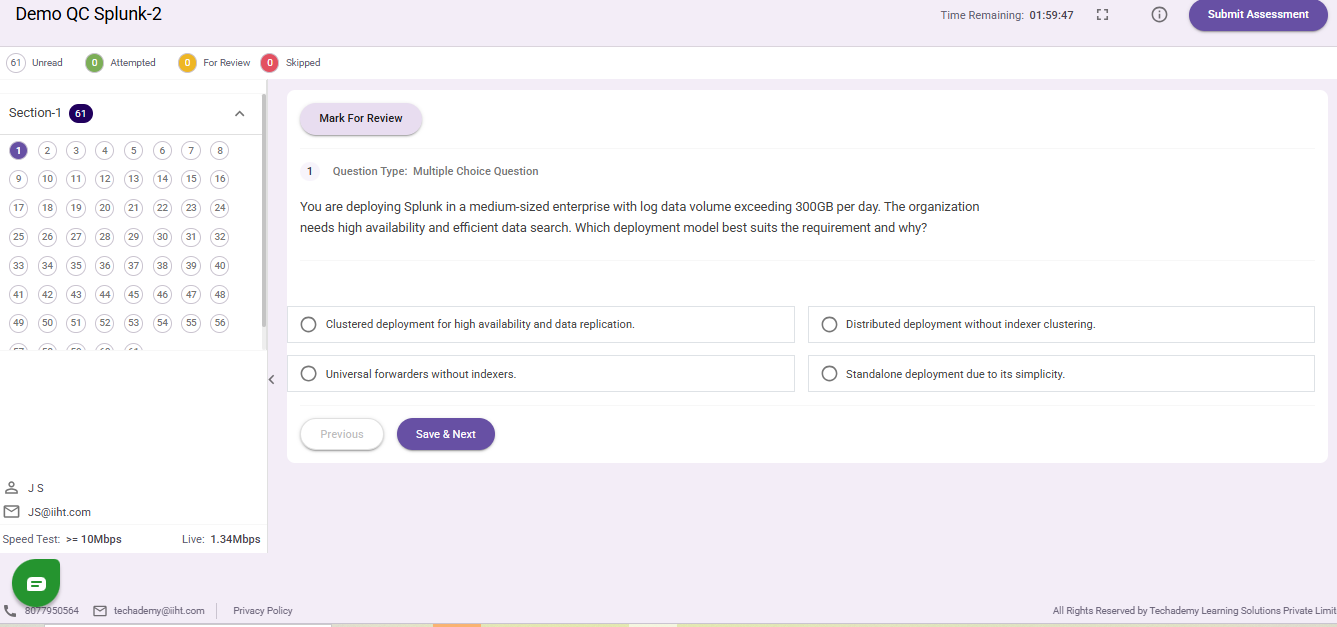
3. Once you click on Continue, you will be redirected to the Assessment page, where you can view the assessment details, legend, and timer. You can answer the questions and proceed using the Next button. Your selected answer will be saved automatically when you click on Next.
For MCQ questions, you have the option to skip questions, mark them for review, and navigate back and forth between questions. Clicking on an option will select it, and the selected answer will be highlighted.
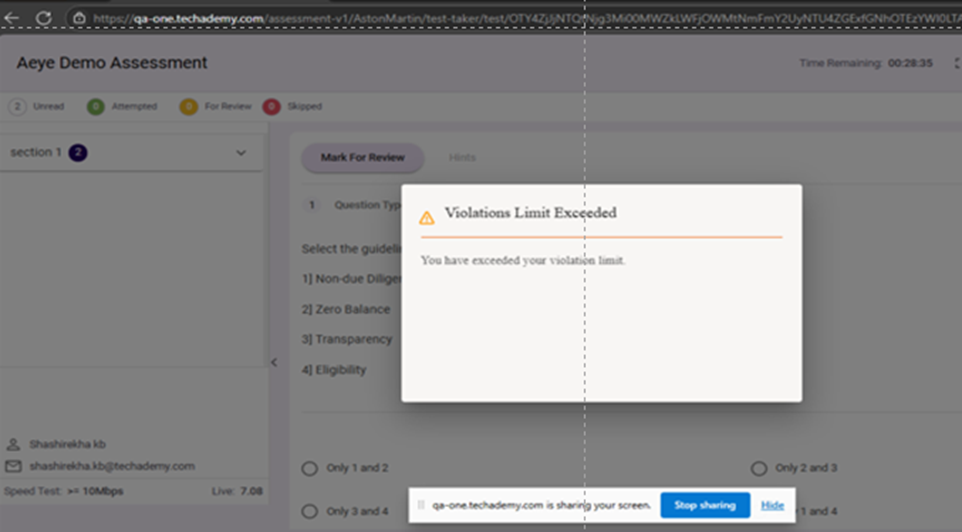
4.Switching between tabs, taking screenshots, copying and pasting, or accessing other tabs or browsers in a different window is strictly prohibited and will result in immediate termination of your session. Please ensure that you remain within the assessment window at all times.
Some important points –
✓ Timer will Auto-Submit the Assessment on Expiry
✓ Users can submit the test at any given point in time before the Timer expires.
✓ On Sign-In, the user will see Test Information
✓ Please read the instructions carefully before starting the Assessment
✓ If there is a Power Cut/Internet Disruption, Answers will be saved along with the Timer for User to begin the Assessment again.
✓ Assessment is only deemed Completed on the User Clicking the Submit Button.
5. On completion of the assessment please click on “Submit Assessment” button on the Top Right corner of the assessment window.
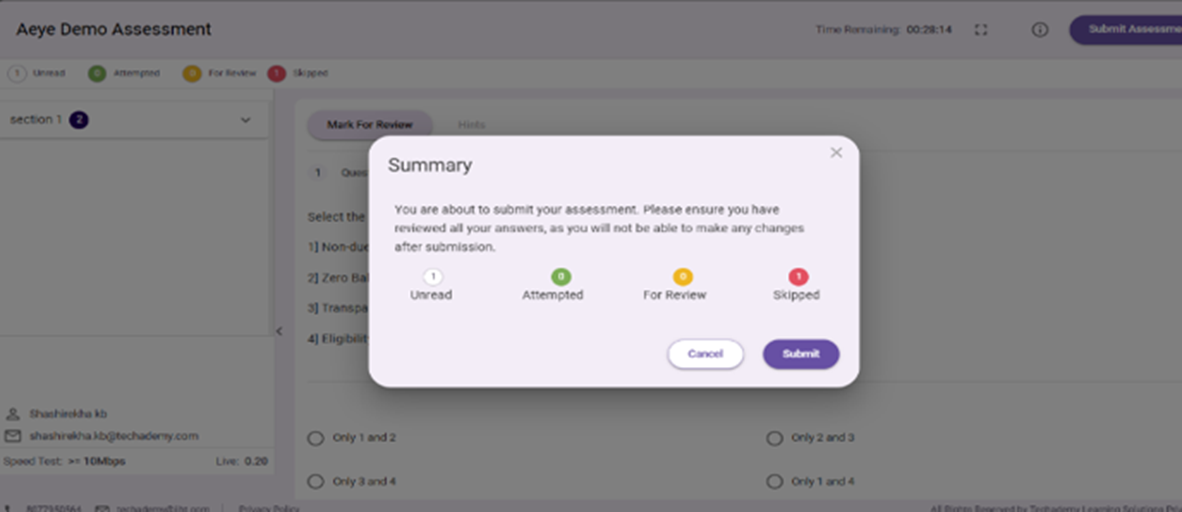
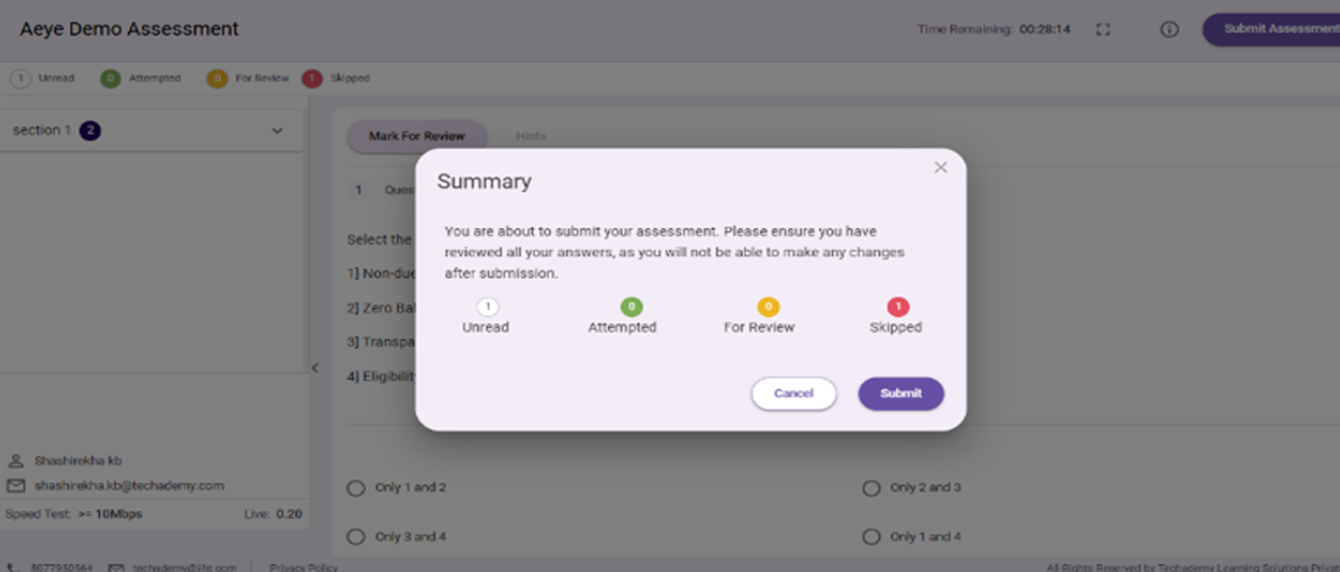
Review the summary and, if needed, revisit any questions by clicking on the highlighted counts in the legend. Click Cancel to go back and make changes, or click Submit to finalize and submit your assessment after reviewing the summary.
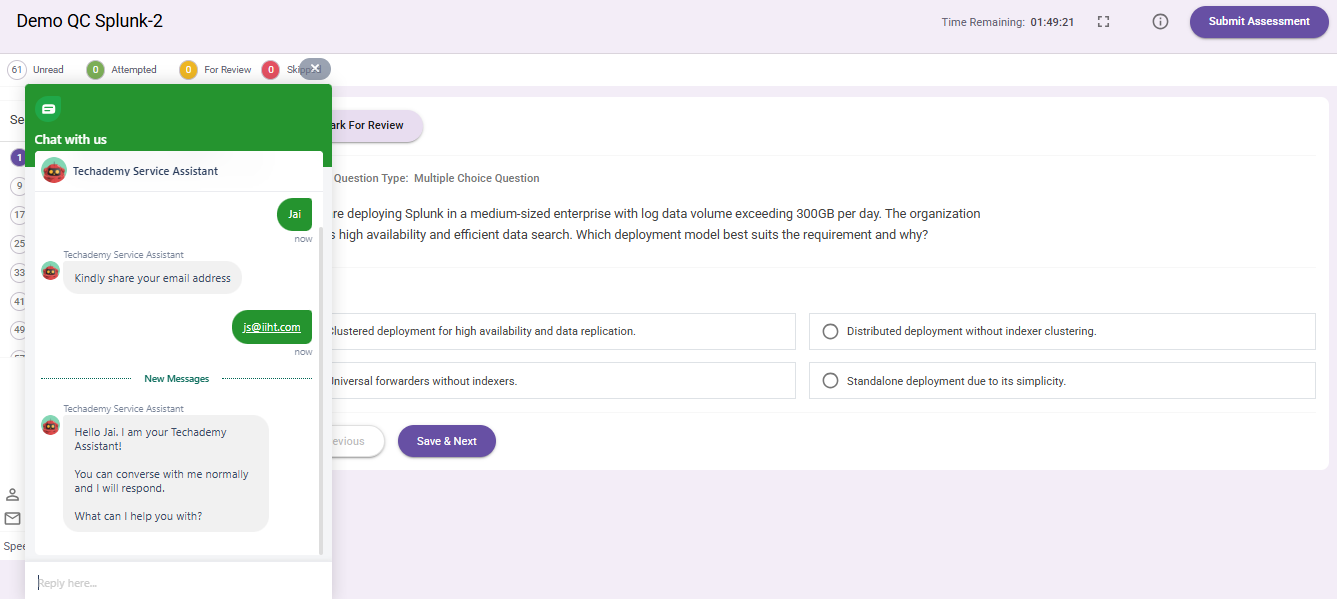
6. If you face any issues during the assessment, you can use the chatbot located in the bottom-left corner as shown below. Once the chatbot opens, please enter your name and email address to proceed.
User Guide for Video Proctored Assessment1. Click the assessment link received on your registered email ID from techademy@iiht.com Note: “Copy the URL and paste it in the Incognito window” Kindly enter First Name and Last Name, email id will be pre populated and the click on "Start Assessment" to get started.
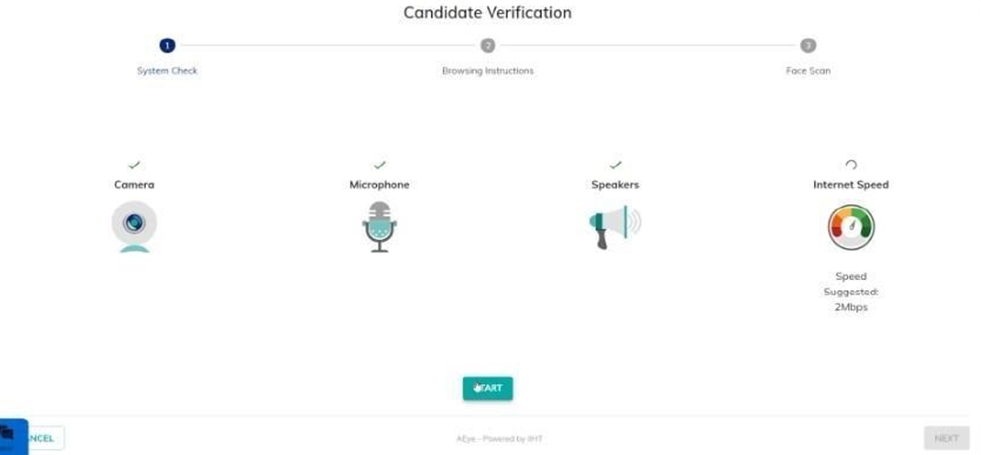
3.Once you click on Continue, the video proctoring Onboarding process will start. Please click on Check to start the System Check.
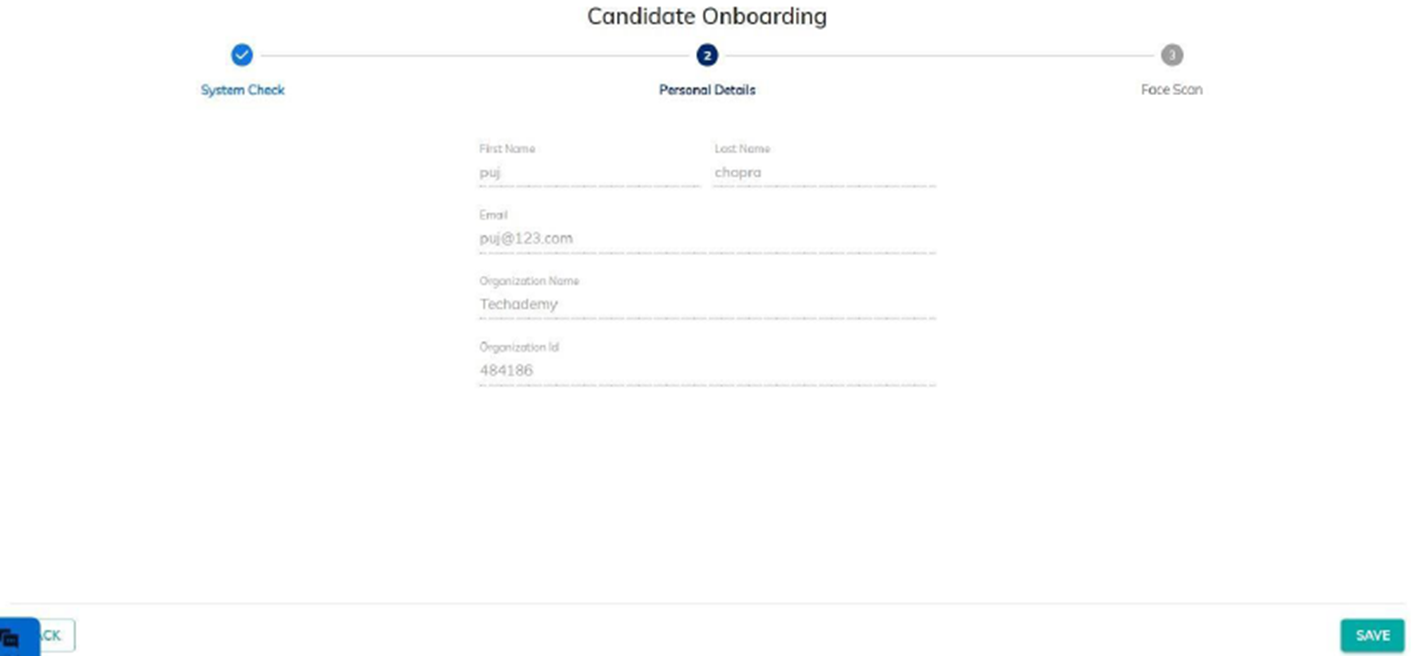
4.Once the system check is successfully done click on next which will lead to the personal details page verify the information provided and click on Save
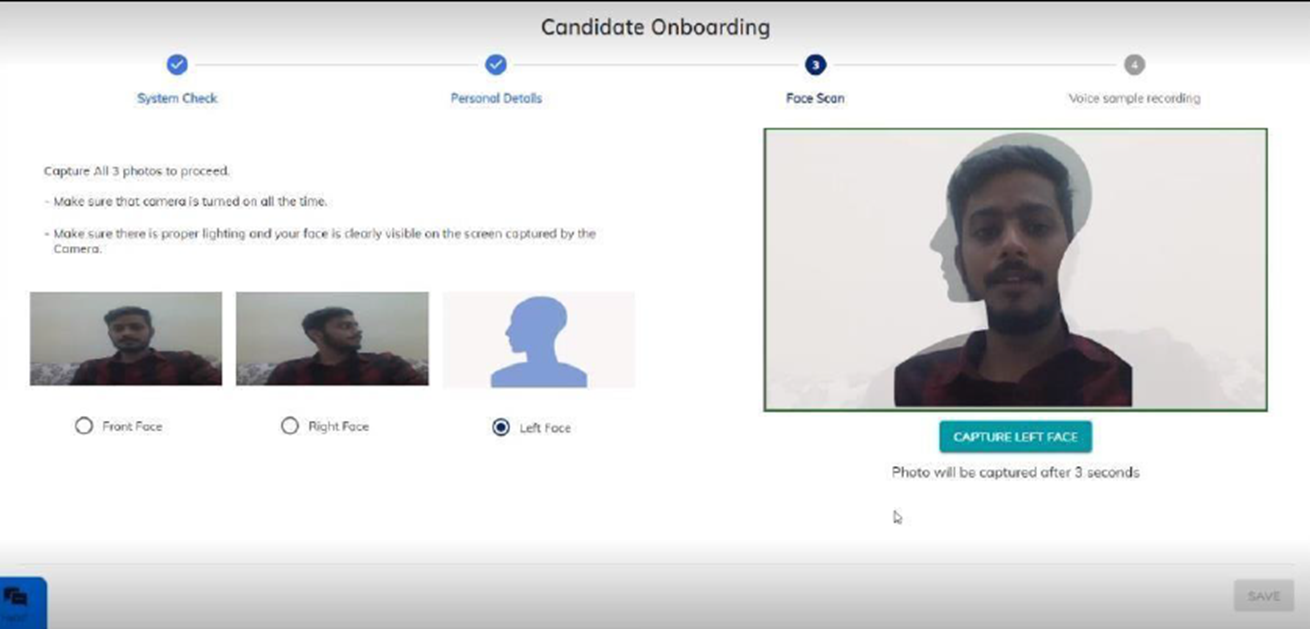
5.In Face Scan capture the 180-degree Face scan (Front, Right, and left side) using the Capture button and Click on Save
6. As a backup, another round of system checks are performed to mitigate issues such as power failures and so-on; Click Next to continue
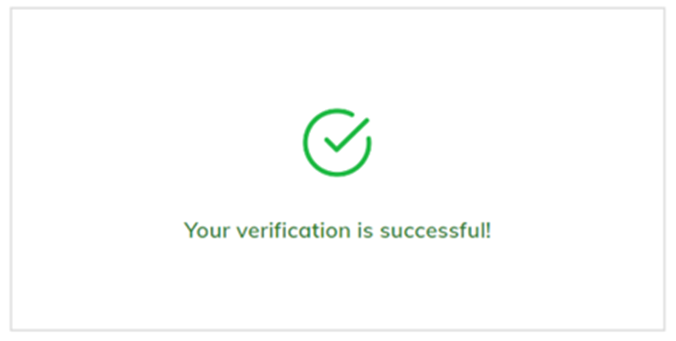
7. On Successful Verification you will be navigated to the assessment screen.
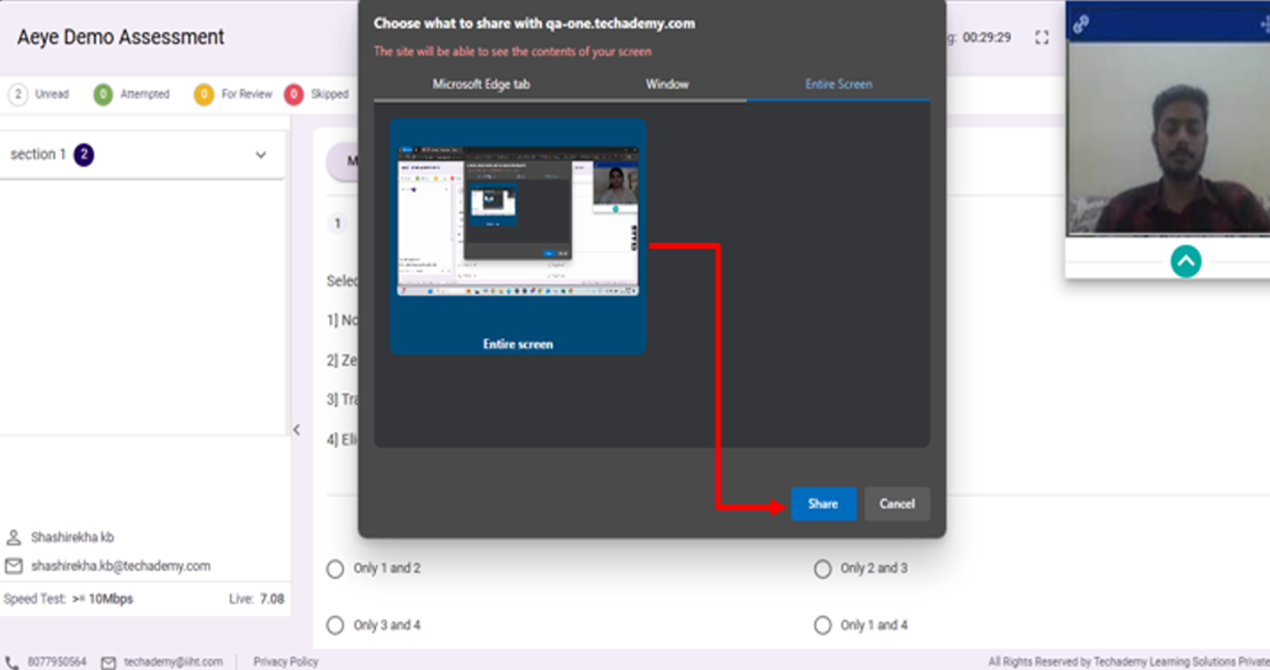
8. Once the proctor starts the assessment, you will be navigated to the assessment screen. Click on the entire screen option and click on Share.
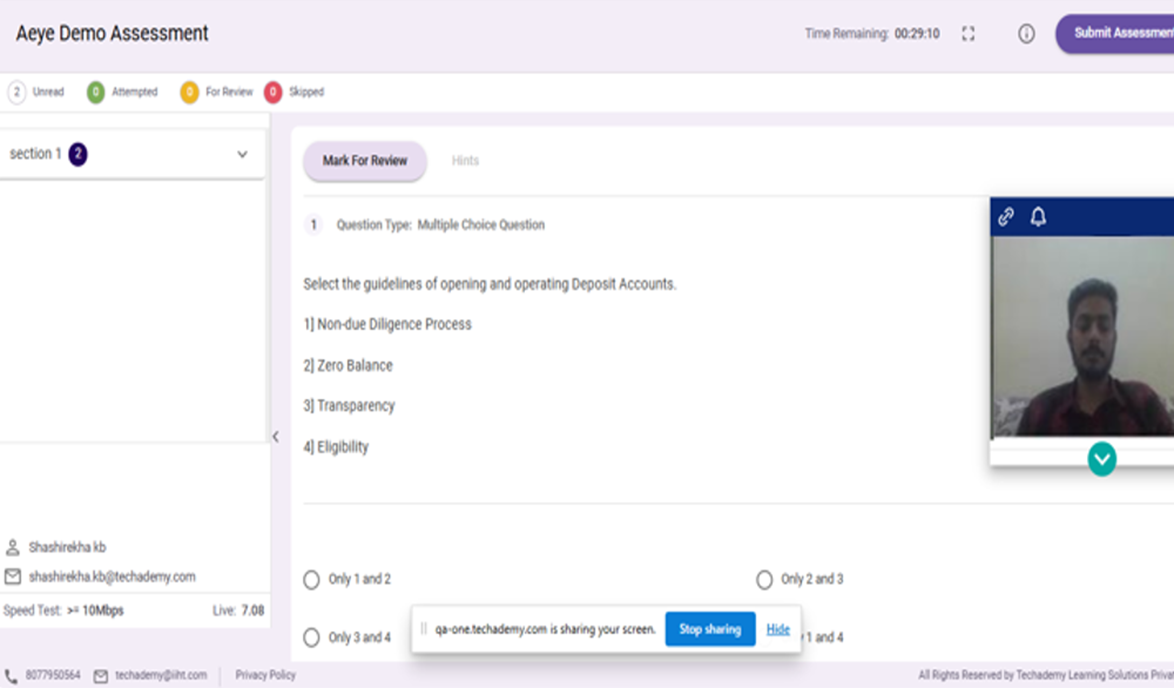
9. Once the assessment starts, it will prompt us to allow webcam and mic access, click on allow and you will see the legends on the left-hand side and on the right side the question along with your live video.
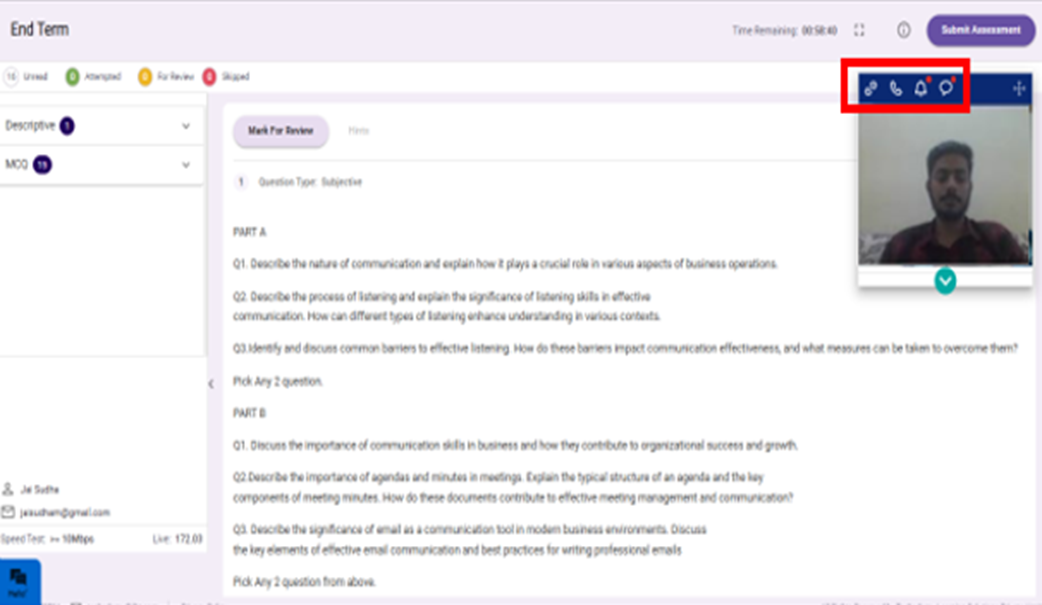
10. This Live video tab is a floating tab that can be placed at any position in the assessment screen and there are multiple icons on this tab - links to check the Allowed URLs, Violation Notifications
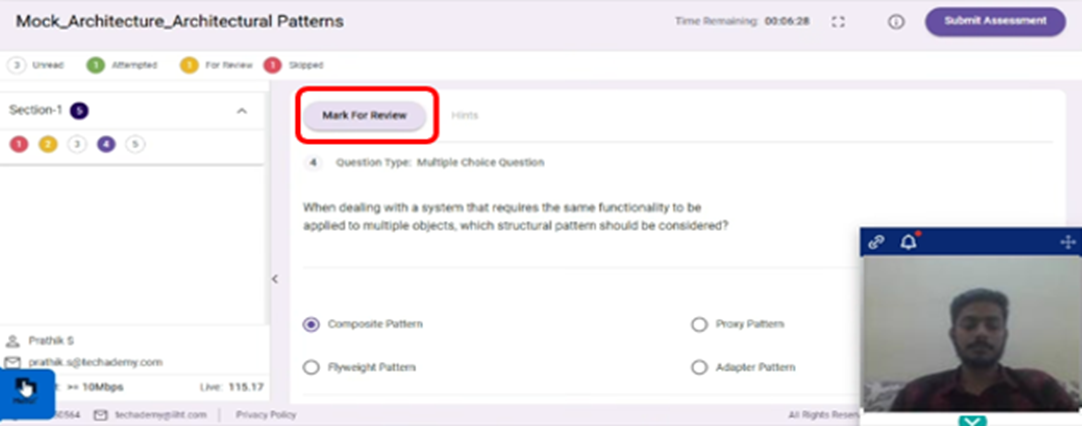
11. For MCQ Questions you will have the option to skip questions, mark questions for review and move back and forth between the questions. However, by clicking on the radio button the answer will get selected and it will get highlighted.
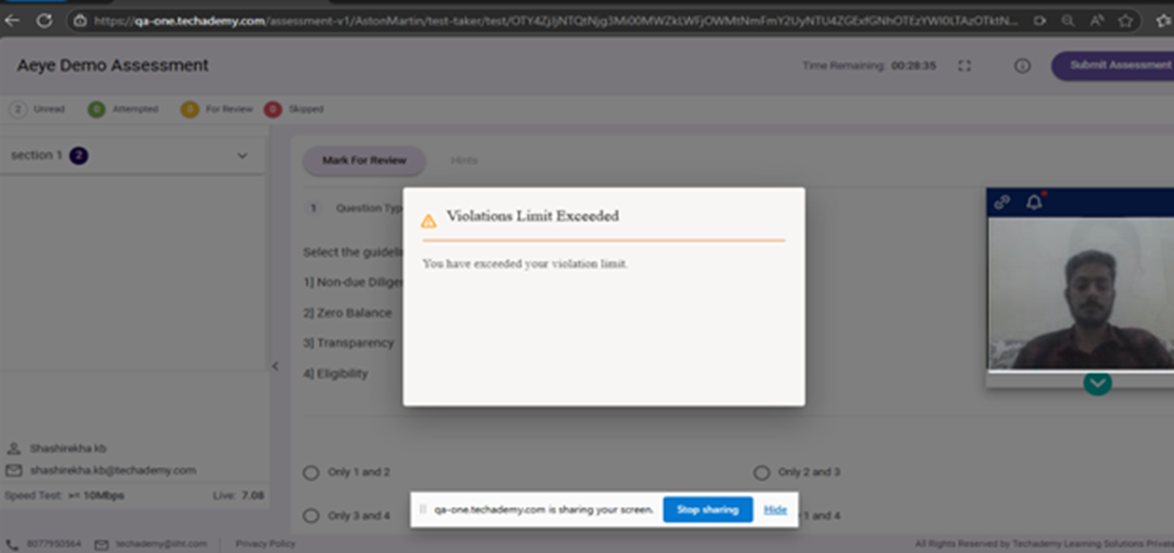
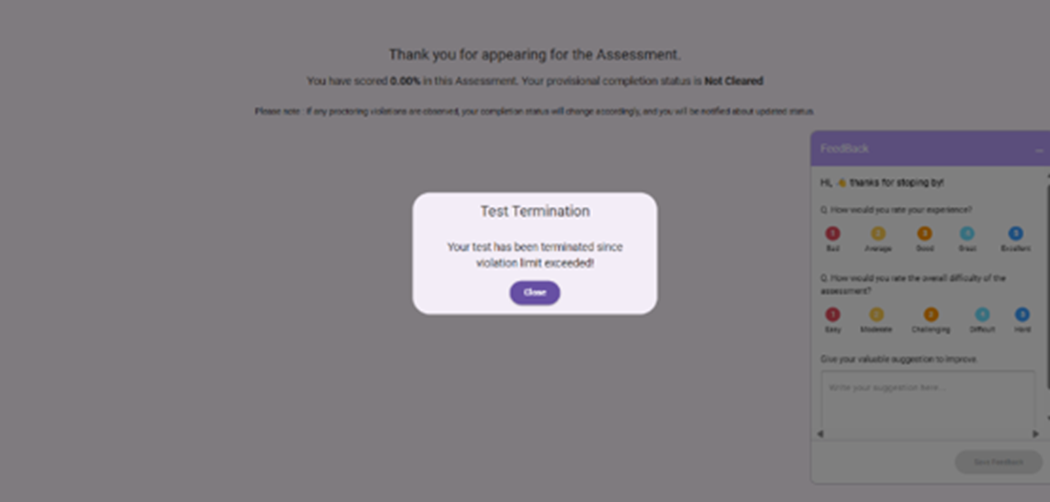
12. You will get terminated from the assessment if you toggle between the tabs beyond the allowed violation limits.
13. In case of any malpractice like moving away from the screen, multiple faces, face invisibility, etc., there will be constant alerts that will pop against the test window, it will be considered as warning signs. If violations continue for more than the given attempts the test will be terminated
Some important points – ✓ Timer will Auto-Submit the Assessment on Expiry ✓ Users can submit the test at any given point in time before the Timer expires. ✓ On Sign-In, the user will see Test Information ✓ Please read the instructions carefully before starting the Assessment ✓ If there is a Power Cut/Internet Disruption, Answers will be saved along with the Timer for User to begin the Assessment again. ✓ Assessment is only deemed Completed on the User Clicking the Submit Button. 14. In case of any challenges during the assessment you can use the chatbot available in the bottom left corner as shown below. Once the bot is initiated, please enter your name and email address to continue.
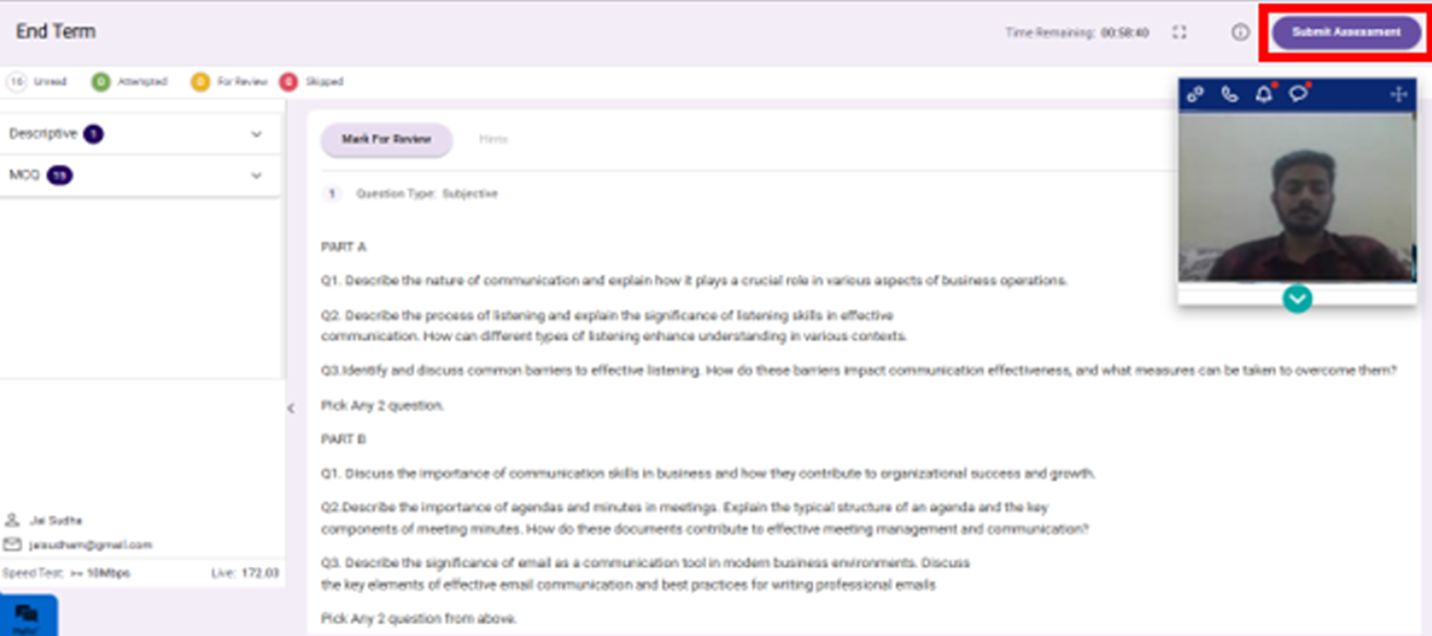
15. On completion of the assessment please click on the “Submit Assessment” button in the Top Right Corner of the assessment window.
16. Once you click on Continue, you will be redirected to the Assessment page, where you can view the assessment details, legend, and timer. You can answer the questions and proceed using the Next button. Your selected answer will be saved automatically when you click on Next.
17. On clicking on the submit button a pop-up appears providing the summary of questions marked for review, skipped, attempted, and unanswered. You can click on the cancel button to go back to answer them once you are satisfied then click on submit the assessment.
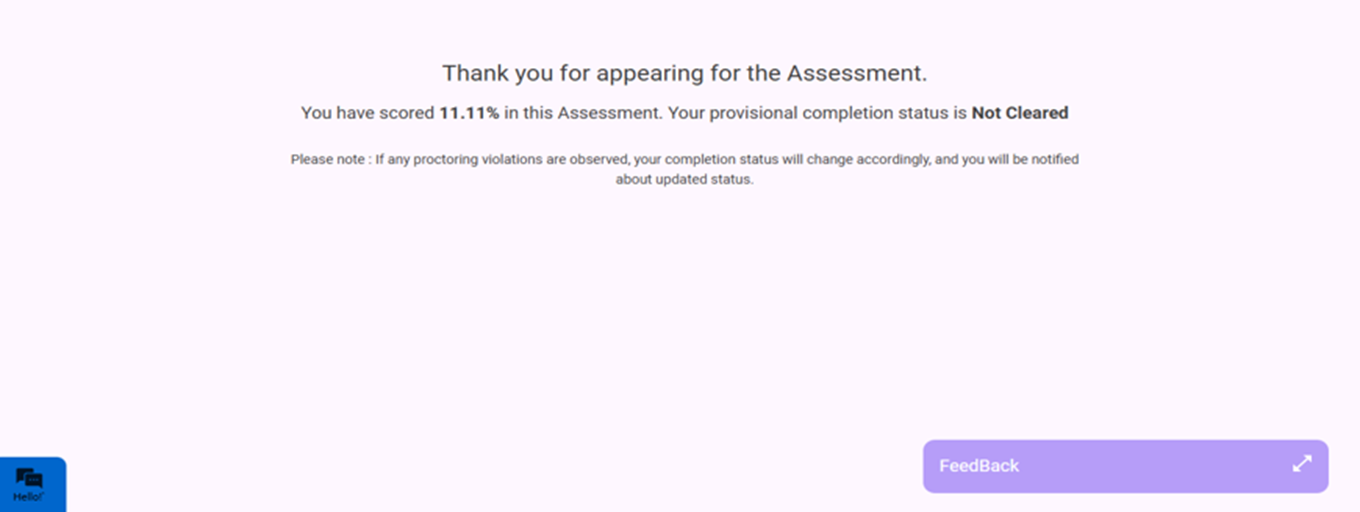
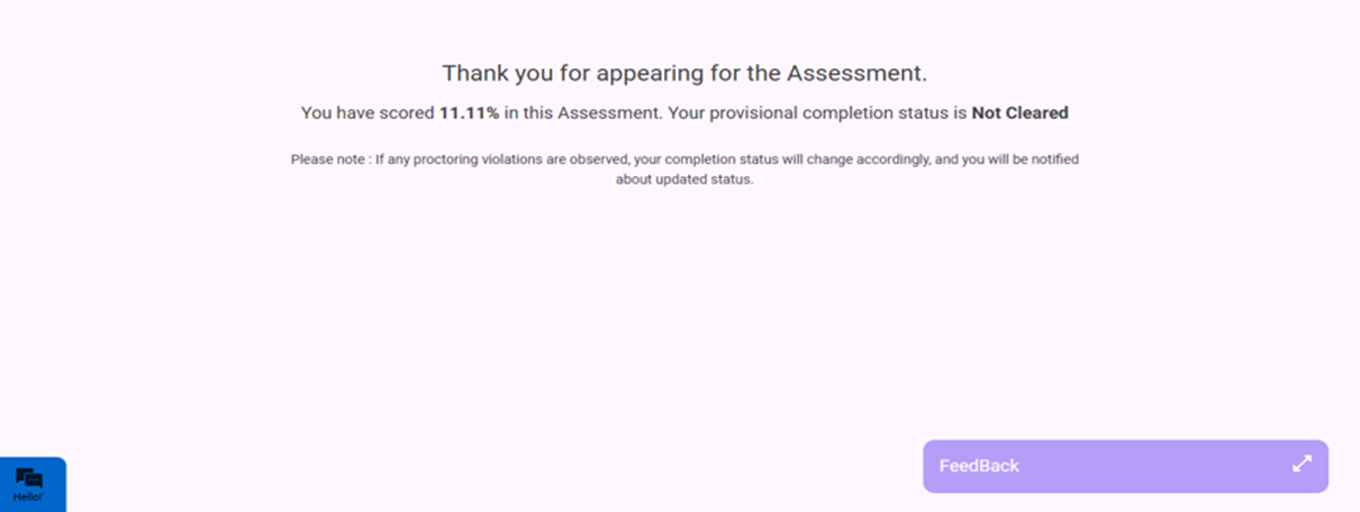
18. Test Completion Page will be displayed after successful submission where you can see the post-assessment details.
User Guide for AEye Video Proctoring – ID Verification Process
1. Click the assessment link received on your registered email ID from techademy@iiht.com Note: “Copy the URL and paste it in the Incognito window” Kindly enter First Name and Last Name, email id will be pre populated and the click on "Start Assessment" to get started.4. Once the system check is successfully done click on next which will lead to the personal details page verify the information provided and click on Save
Important Proctoring guidelines – • Please do not move away from the full-screen mode/assessment tab as that would be considered a violation of assessment rules and the session will terminate. • Looking away from the screen or looking left and right may also result in assessment termination. Please take the assessment in one go without breaks while facing the camera or keyboard. • If any suspicious object is detected like a box, mobile, notepad, etc., the session will terminate without a warning. • The assessment needs to be taken in a well-lit bright place on your laptop or PC exclusively. Please do not take the assessment in tabs or phones. 5. In ID Scan, Click Proceed here to continue ID verification on the Laptop.
6. The platform will recommend the allowed Govt ID card for verification as shown below (PAN card, Voter ID, Aadhar card, Driving License, Passport). College/Office ID will not be considered valid. Select the ID which you will be using for verification.
7. Capture the ID using the Proceed to Capture option.
8. On Capturing the ID, you can verify the quality of the image captured and retake it if required.
9. On Capturing the ID, you can verify the quality of the image captured and retake it if required.
Post ID Capturing Click on Proceed to Take Selfie to Capture the front face, please ensure you are in a
well-lit/bright place so that the image captured is successfully verified against the image on the ID. 10. On Successful ID verification Click on Save and Proceed with Face scan.
11. In Face Scan capture the 180-degree Face scan (Front, Right, and left side) using the Capture button and Click on Save
Note: Kindly capture front, right, and felt face appropriately to avoid challenges in verification. 12. On Successful Verification you will be navigated to the assessment screen.
Important Proctoring guidelines – • Please do not move away from the full-screen mode/assessment tab as that would be considered a violation of assessment rules and the session will terminate. • Looking away from the screen or looking left and right may also result in assessment termination. Please take the assessment in one go without breaks while facing the camera or keyboard. • If any suspicious object is detected like a box, mobile, notepad, etc., the session will terminate without a warning. • The assessment needs to be taken in a well-lit bright place on your laptop or PC exclusively. Please do not take the assessment in tabs or phones. 13. Once the proctor starts the assessment, you will be navigated to the assessment screen. Click on the entire screen option and click on Share.
14. Once the assessment starts, it will prompt us to allow webcam and mic access, click on allow and you will see the legends on the left-hand side and on the right side the question along with your live video.
This Live video tab is a floating tab that can be placed at any position in the assessment screen and there are multiple icons on this tab - links to check the Allowed URLs, Violation Notifications
For MCQ Questions you will have the option to skip questions, mark questions for review and move back and forth between the questions. However, by clicking on the radio button the answer will get selected and it will get highlighted.
15. You will get terminated from the assessment if you toggle between the tabs beyond the allowed violation limits.
16. In case of any malpractice like moving away from the screen, multiple faces, face invisibility, etc., there will be constant alerts that will pop against the test window, it will be considered as warning signs. If violations continue for more than the given attempts the test will be terminated.
Some important points – 1. The timer will Auto-Submit the Assessment on Expiry, but we highly recommend submitting the assessment before the timer expires so that all your answers are submitted successfully. 2. The user can submit the test at any given point in time before the Timer expires 3. On Sign-In, the user will see all the details of the configured test. 4. Please read the instructions carefully before starting the Assessment. 5. If there is a Power Cut/Internet Disruption, answers will be saved along with the Timer for the User to begin the Assessment again. 17. In case of any challenges during the assessment you can use the chatbot available in the bottom left corner as shown below. Once the bot is initiated, please enter your name and email address to continue.
18. On completion of the assessment please click on the “Submit Assessment” button in the Top Right Corner of the assessment window.
19. On clicking on the submit button a pop-up appears providing the summary of questions marked for review, skipped, attempted, and unanswered. You can click on the cancel button to go back to answer them once you are satisfied then click on submit the assessment.
20. Test Completion Page will be displayed after successful submission where you can see the post-assessment details.
Was this article helpful?
That’s Great!
Thank you for your feedback
Sorry! We couldn't be helpful
Thank you for your feedback
Feedback sent
We appreciate your effort and will try to fix the article